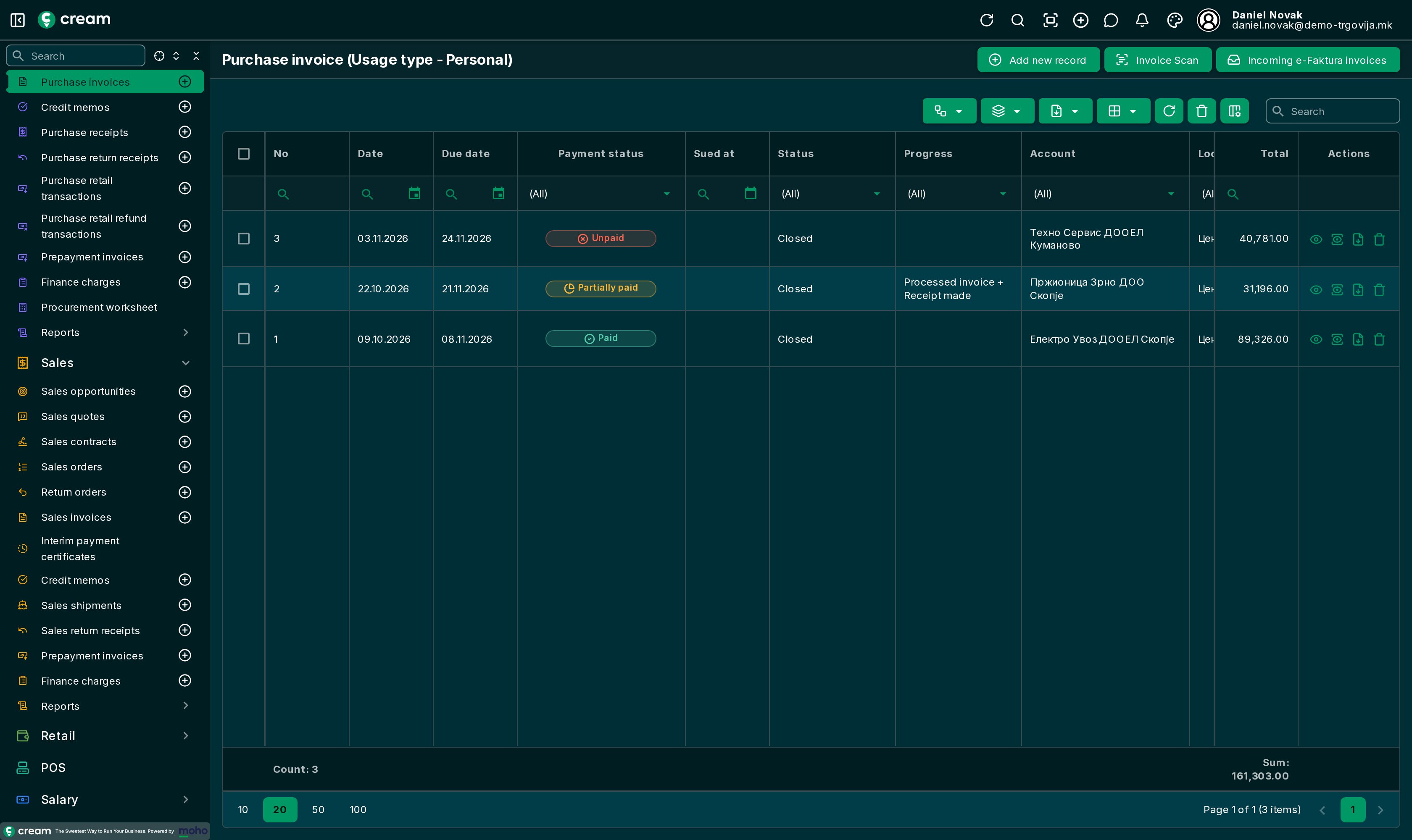
Every purchase document – quotes, contracts, orders, receipts, invoices, credit memos, return receipts, retail transactions, prepayment invoices and finance charges – has the same list and the same form. This page describes the shared parts; what's specific to one document is on its own page.
Actions on several documents apply to the documents ticked in the first column.
Button
What it does
Change
Changes the status or the progress of the selected documents at once.
Actions
Send to email for the selected documents, and reversing them. Receipts also have Batch invoice.
Export
Export Excel of the list, Preview PDF and Export PDF of the selected documents, Export PDF without email. Invoices and finance charges also have Bank order export.
Appearance
Save view saves the grid's current layout; Reset view restores the default.
Refresh
Reloads the data.
Bulk delete
Deletes the selected documents in draft.
Column Chooser
Shows or hides columns.
Search
Searches all columns.
Below the column headers are the per-column filters, and at the bottom the record count, the sum of amounts and the pages.
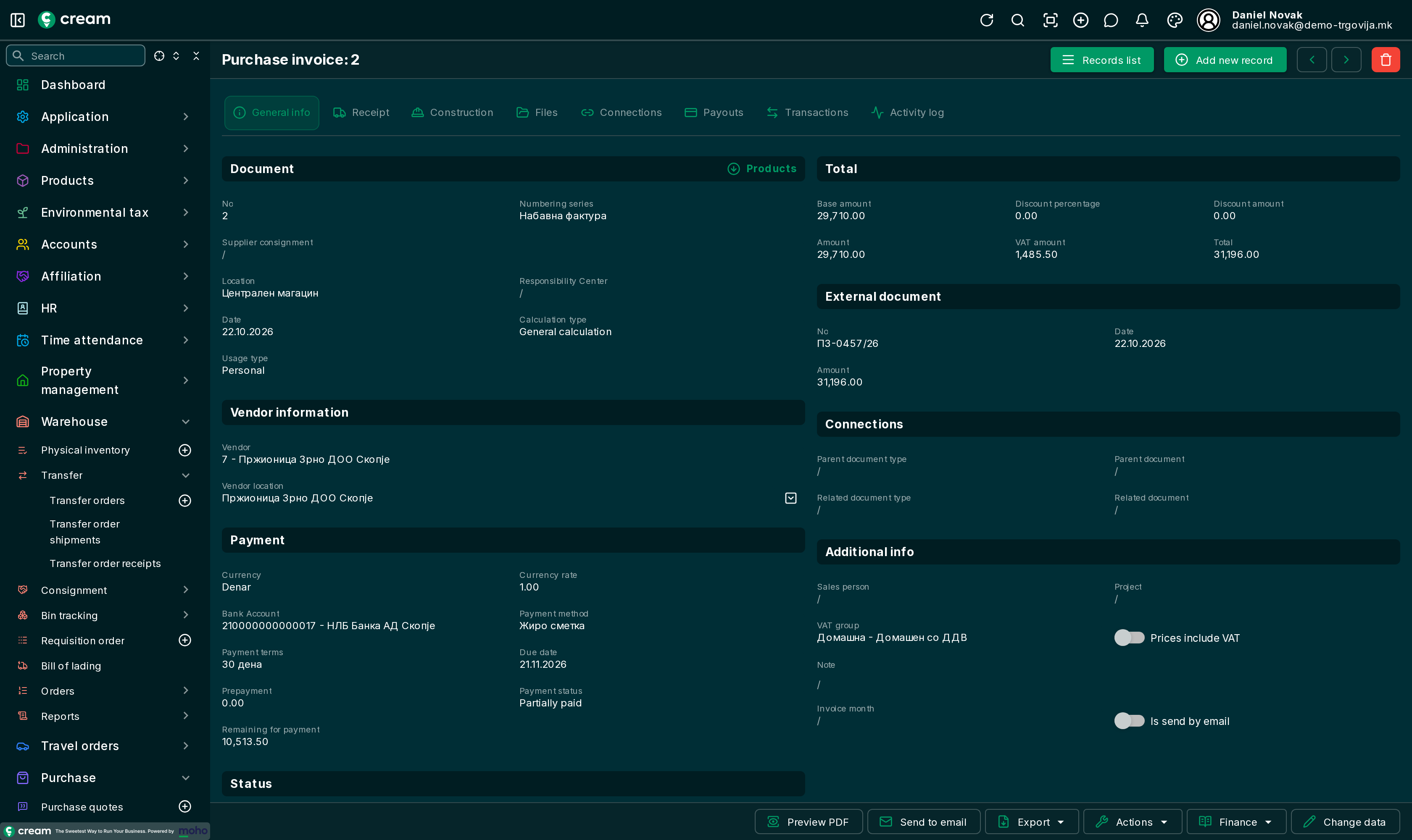
The header – Document, Vendor information, Payment, External document, Connections, Additional info, Status – and the Products.
Receipt
The vendor's address and contact, and the receipt details: Receipt date, Shipment method, Shipment agent, Transport method, Tracking number and Shipping advice.
Construction
Links the document to a construction site from the Construction module.
Files
Attachments: the scanned invoice, delivery note, contract. Added by choosing or dragging the file.
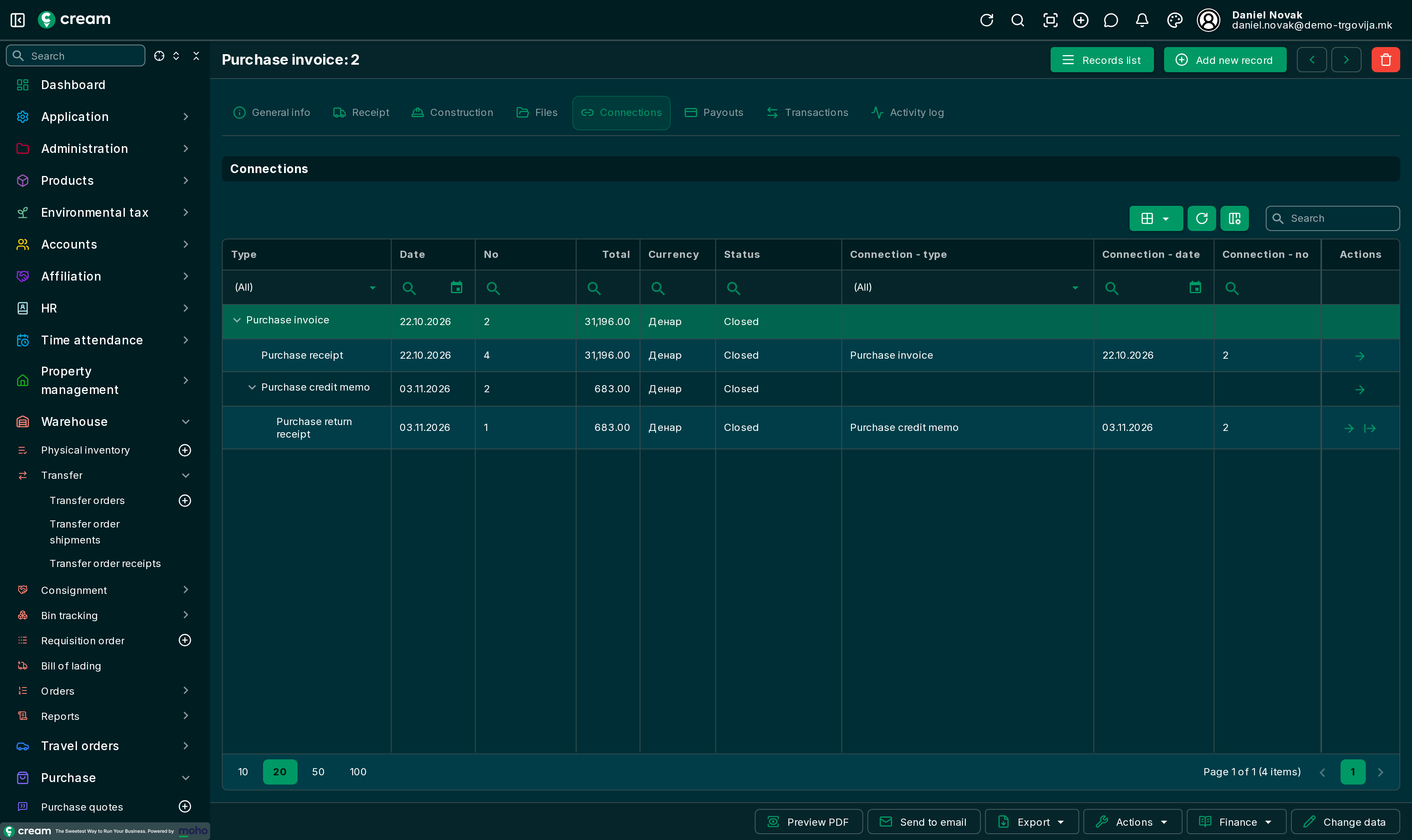
Connections
The whole chain of documents linked to this one: what it was made from and what was made from it, with their statuses.
Payouts / Payments
The payments linked to the document, with the payment method and amount. Credit memos and return orders have Payments – the money the vendor pays back.
Transactions
The bank statement lines the document was paid with.
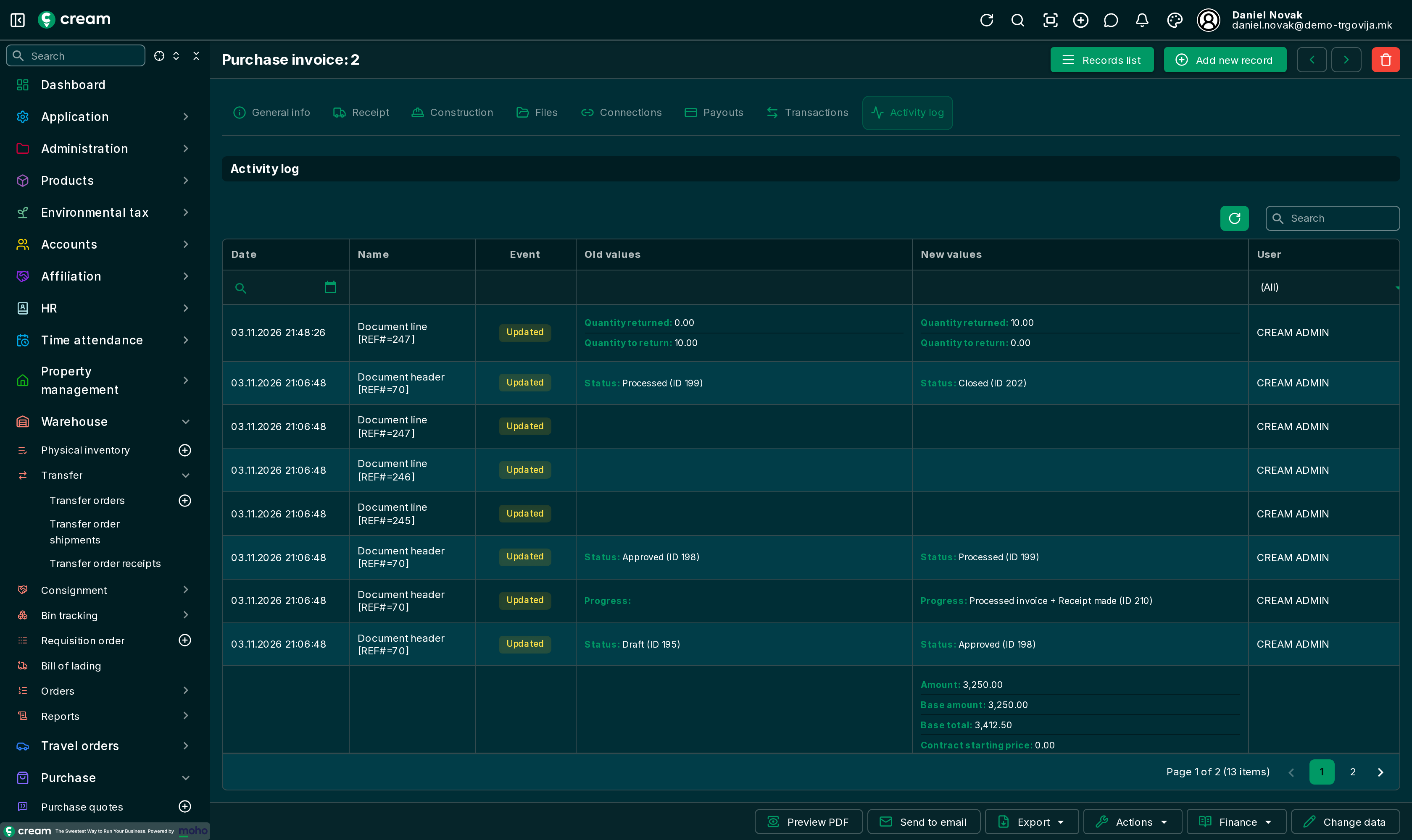
Activity log
Every change to the document and its lines: when, who, the old and the new value.
Contracts also have Tracking parts, Contract ledger and Vendors: Purchase contract.
In the Status section, Next status changes the status (approve, close, cancel), and Next progress runs the next action (make a receipt, process the invoice…). The icon next to them opens the status and progress history.