Purchase order
The purchase order is what you order from the vendor, at which prices and quantities. Receipts and invoices are made from it. The menu is .
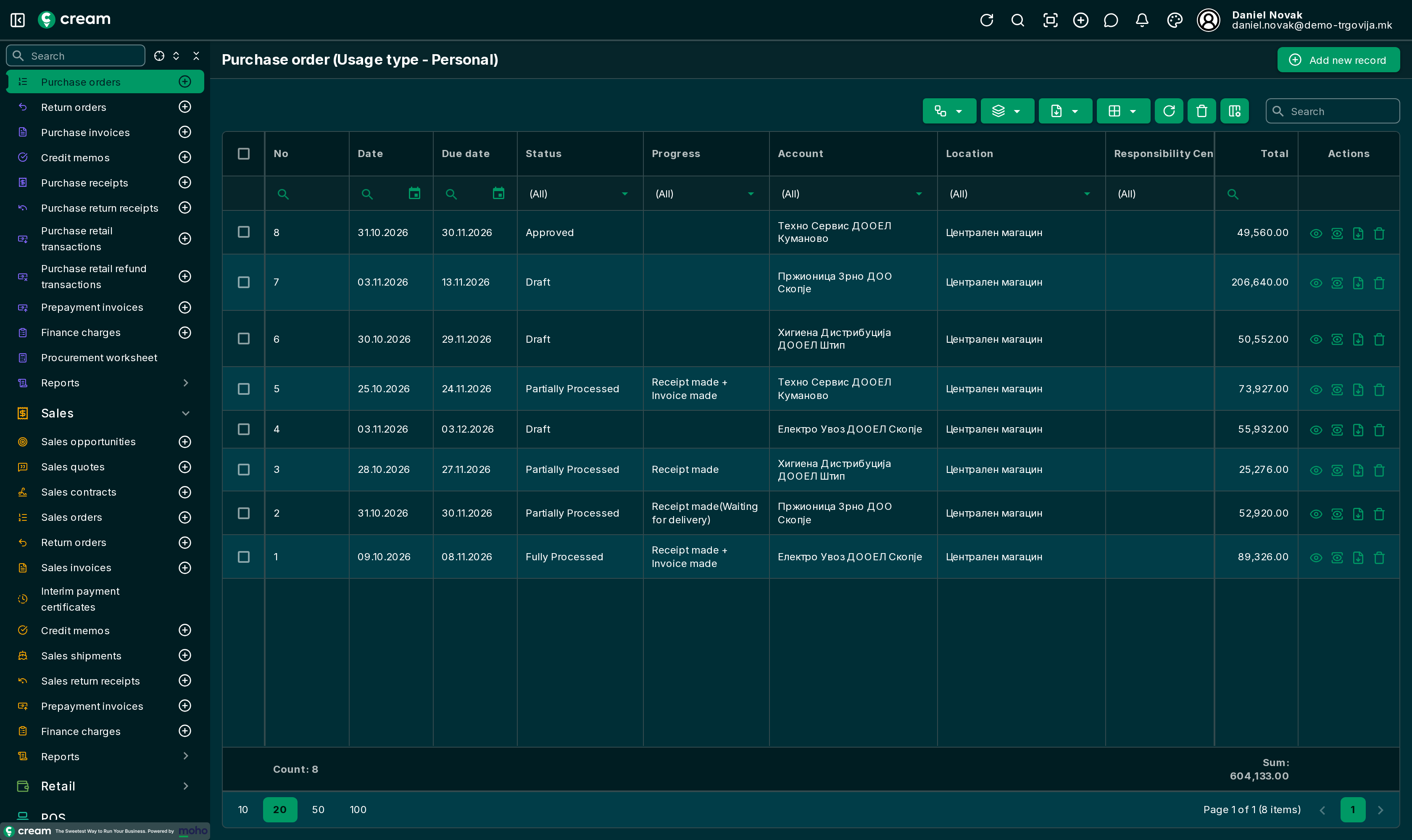
How it's made
- Directly: open , click Add new record, select the vendor – the address, payment terms and currency are filled in from their card – enter the External document (for example from the vendor's quote or confirmation) and the Products: Entering products. Save.
- From a purchase quote with Make an order, or from a purchase contract with Make an order.
- From the procurement worksheet with Create documents.
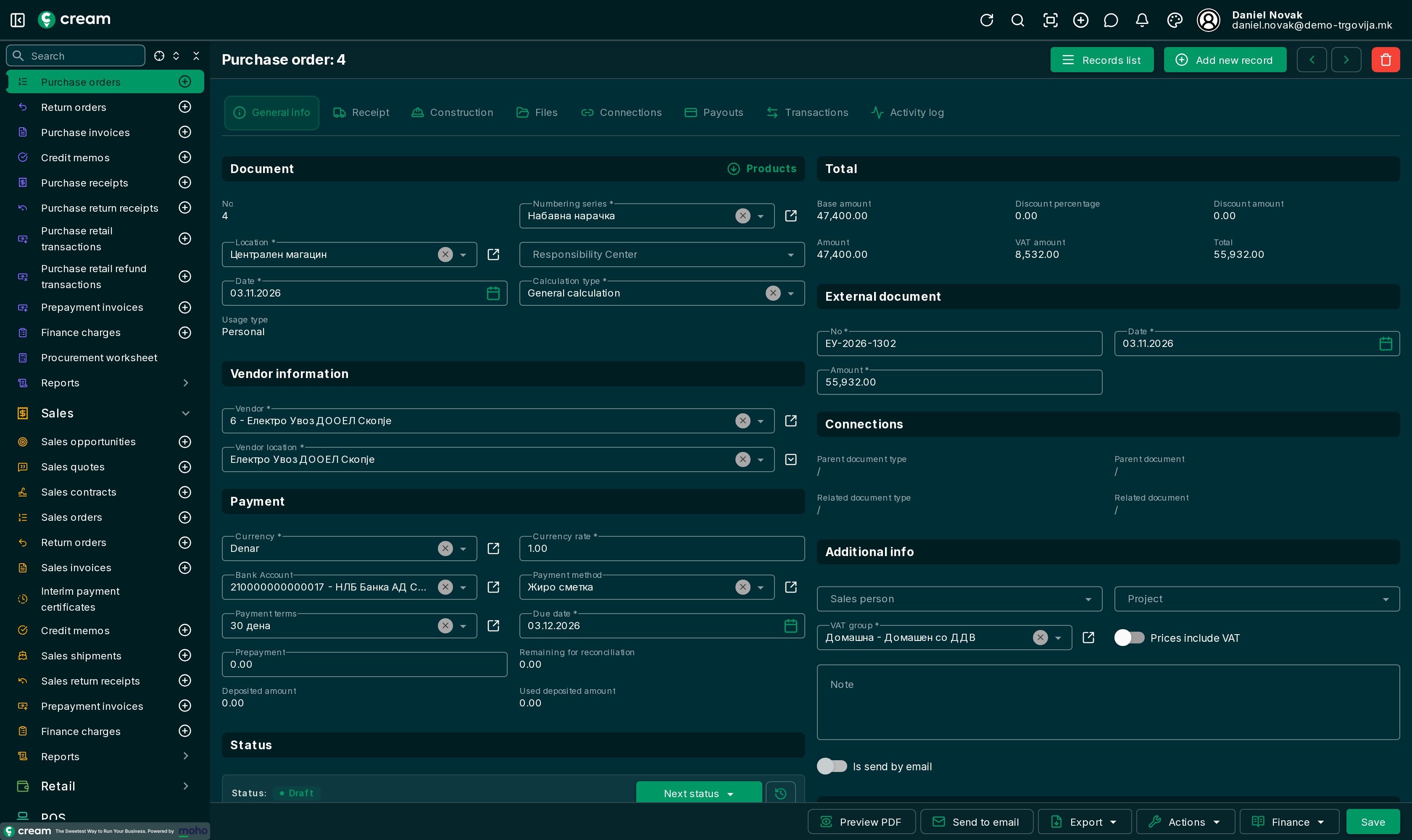
Form
On the Receipt tab, Shipping advice decides whether the order is received and invoiced at once (Completely) or in parts (Partially): Partial receipts and invoicing. The other tabs are as on every purchase document: Document list and form.
Statuses
| Status | Meaning |
|---|---|
| Draft, In progress, Pending Approval | Being prepared and approved. |
| Approved | Can be received and invoiced. The order must have products. |
| Partially Processed | Something is not received or invoiced yet. |
| Fully Processed | Everything is received and invoiced, or it was closed by hand. It is locked. |
| Canceled, Expired | Won't be carried out. It is locked. |
| Reversed | Reversed. |
Next status and Next progress
With Next status the order is approved, closed by hand as Fully Processed (when the vendor won't deliver the rest), canceled or marked expired. From the approved order, with Next progress:
| Action | What it does |
|---|---|
| Make a receipt | A receipt that receives the goods right away: Purchase receipt. |
| Make a receipt(Wait for delivery) | A receipt in Waiting for delivery; the goods are received later. |
| Make an invoice | A purchase invoice, processed: Purchase invoice. |
| Make a receipt + Make an invoice | Receipt and invoice in one step. |
| Make a receipt(Wait for delivery) + Make an invoice | The invoice is processed, the goods aren't received yet. |
| Make a retail transaction | A retail transaction – a purchase paid at once: Purchase retail transaction. |
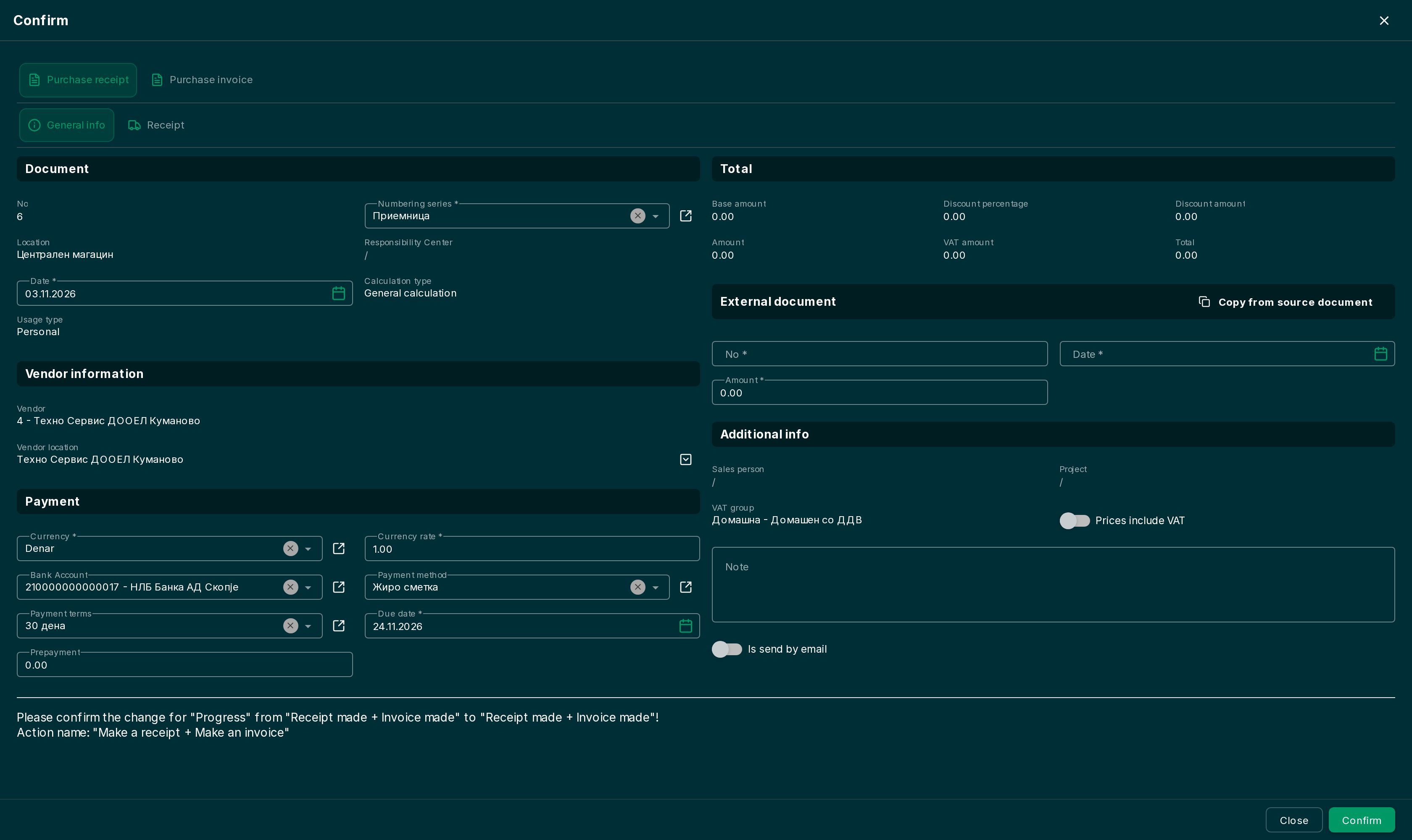
The confirmation dialog
Before the action runs, the Confirm dialog opens with the header of each document it will make, one tab each, for example Purchase receipt and Purchase invoice. Pick the numbering series and the date there; the External document section is empty: enter the No, Date and Amount of the vendor's delivery note or invoice. Copy from source document takes them from the order.
Actions and Finance
| Action | What it does |
|---|---|
| Purchase prepayment invoice | When an advance is paid on the approved order: a prepayment invoice for it. Purchase prepayment invoice |
| Deposit | Part of the order is paid in advance with a retail transaction. An order with a deposit is then finished with a retail transaction. Purchase retail transaction |
| Sync product quantities | Changes the line quantities from an Excel file. The sample is Export to Excel (Short products) of the same order. |
| Transfer to location, Transfer from location | A transfer order with the selected lines: Corrections, returns and transfers. |
| Generate sales document | A sales order for a customer with the same lines. |
| Clone | A new order in draft with the same lines. |
Finance: Payouts (advances paid for the order) and the Account ledger.