Procurement worksheet
The worksheet works out what to order and from which vendor, so stock lasts a given number of days. From the proposal, the purchase orders and transfer orders are made in one click. The menu is .
1. Create a worksheet
With Add new record, enter:
| Field | Meaning |
|---|---|
| Name | For example "Purchasing - Central warehouse". |
| Locations, Vendors, Product category, Brand, Manufacturer | Which products and locations are worked out. Empty means all. |
| Usage over the last (days) | The period the daily usage is worked out from. |
| Coverage (days) | How many days stock should last after the order. |
| Usage counted from | What counts as usage: sales, retail, production, bill of materials, requisition. |
| Count draft orders as on order | Draft orders count as already ordered. |
| Only below the minimum | Proposes only products whose projected stock is below the minimum quantity. |
2. Calculate
In Actions, choose Calculate plan (replace all lines), or Calculate plan (keep manual lines) if you have added or changed lines by hand. Below the fields it says when and by whom it was last calculated.
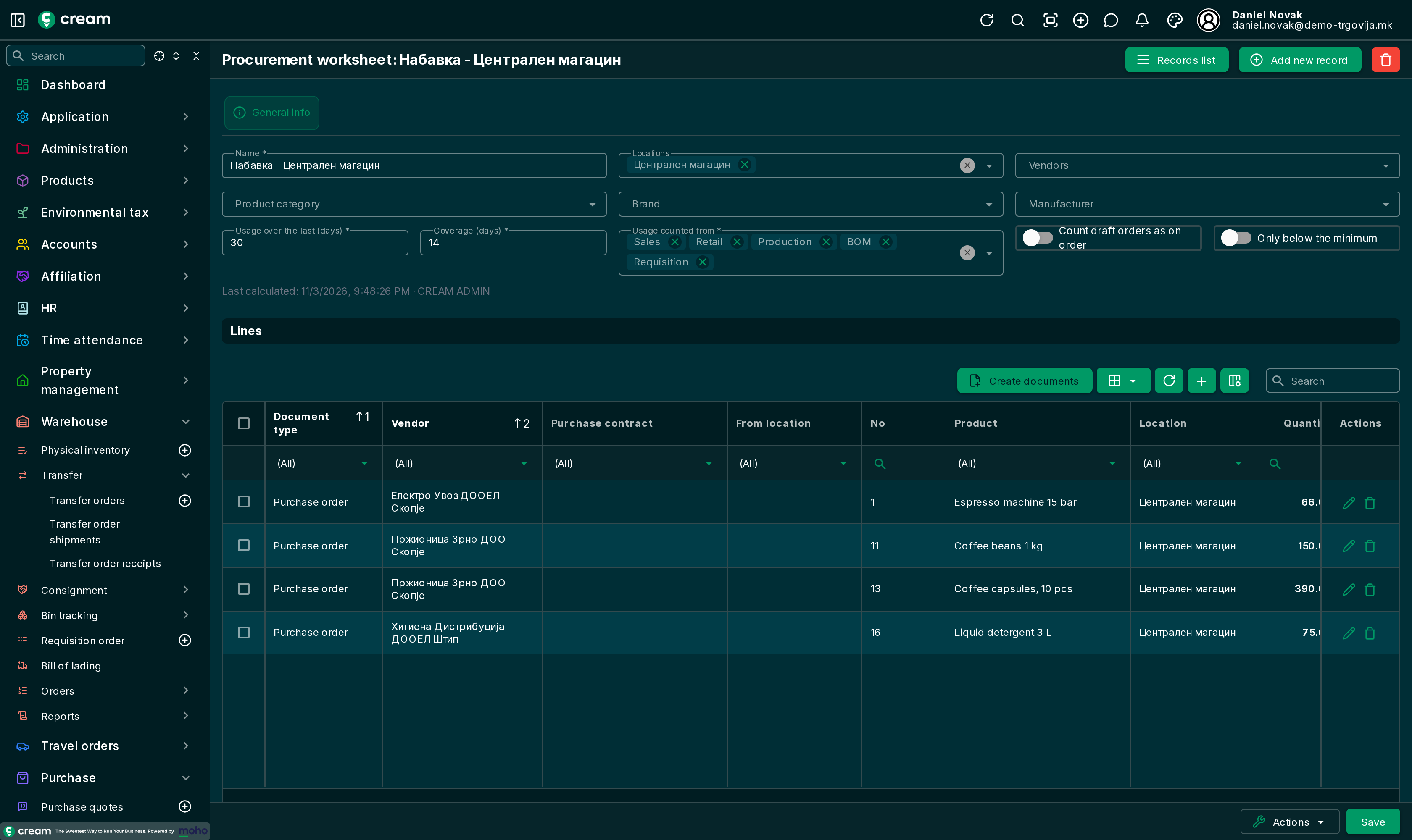
For each product and location:
- Projected = on hand + on order + in transit − open sales orders − transfers that have to go out.
- If the projected stock is at or below the Min. quantity, it proposes refilling up to Refill up to.
- It also works out what is needed for Daily usage × (coverage days + delivery time), plus the minimum quantity, minus the projected stock. The larger of the two is proposed.
- The vendor is the location's replenishment vendor, else the preferred vendor, else the product's only vendor.
- The quantity is rounded up to a whole purchase unit, raised to the vendor's minimum order quantity and rounded up to the order multiple.
The Reason column shows why the product is proposed, and Warnings – for example a product without a vendor or one that is produced. Lines can be changed and deleted before the documents are made.
3. Create the documents
Select the lines (or none, for all) and click Create documents. The app first shows which documents it will make, grouped by vendor and location, with the delivery date.
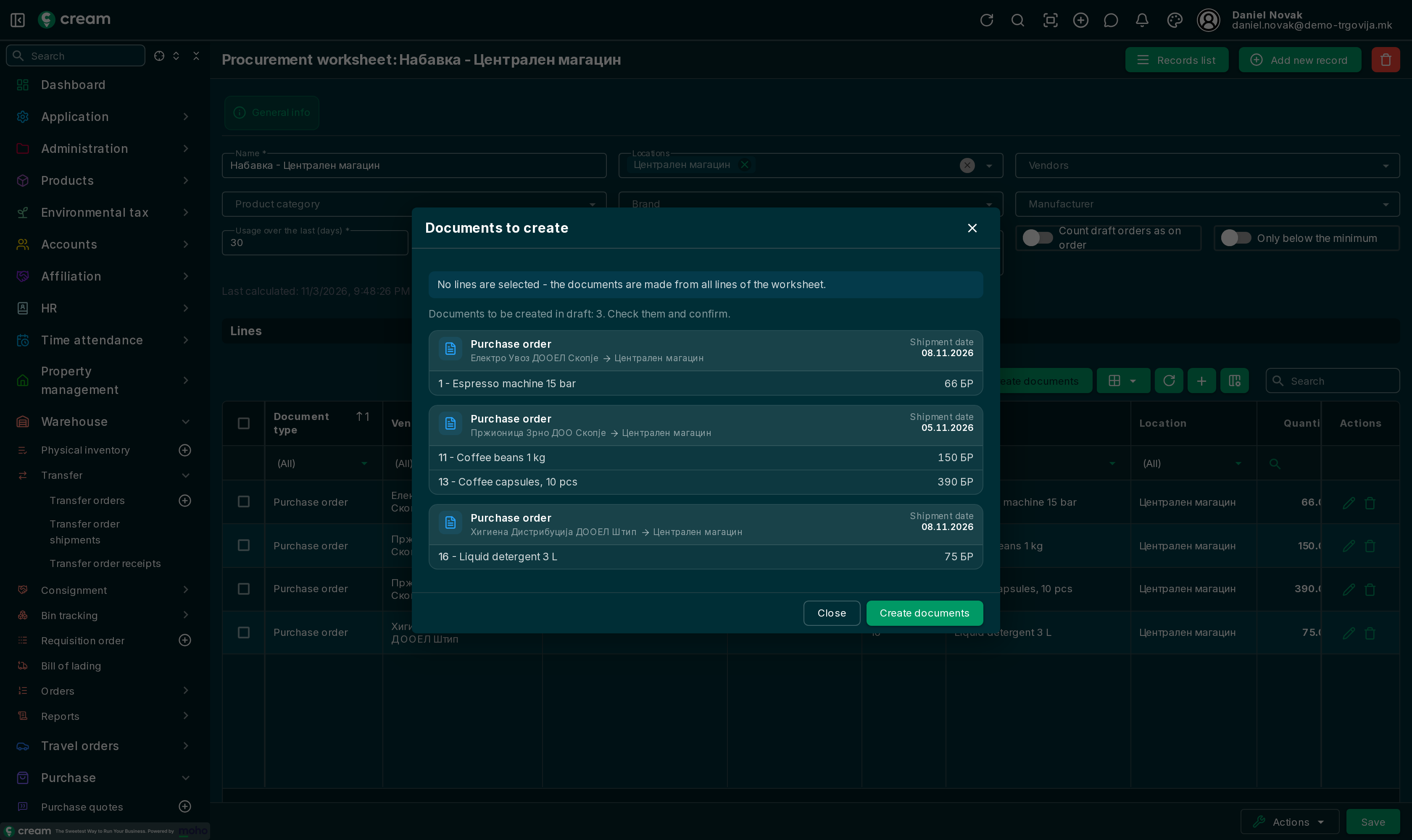
The orders are then approved and processed: Purchase order.