Entering products
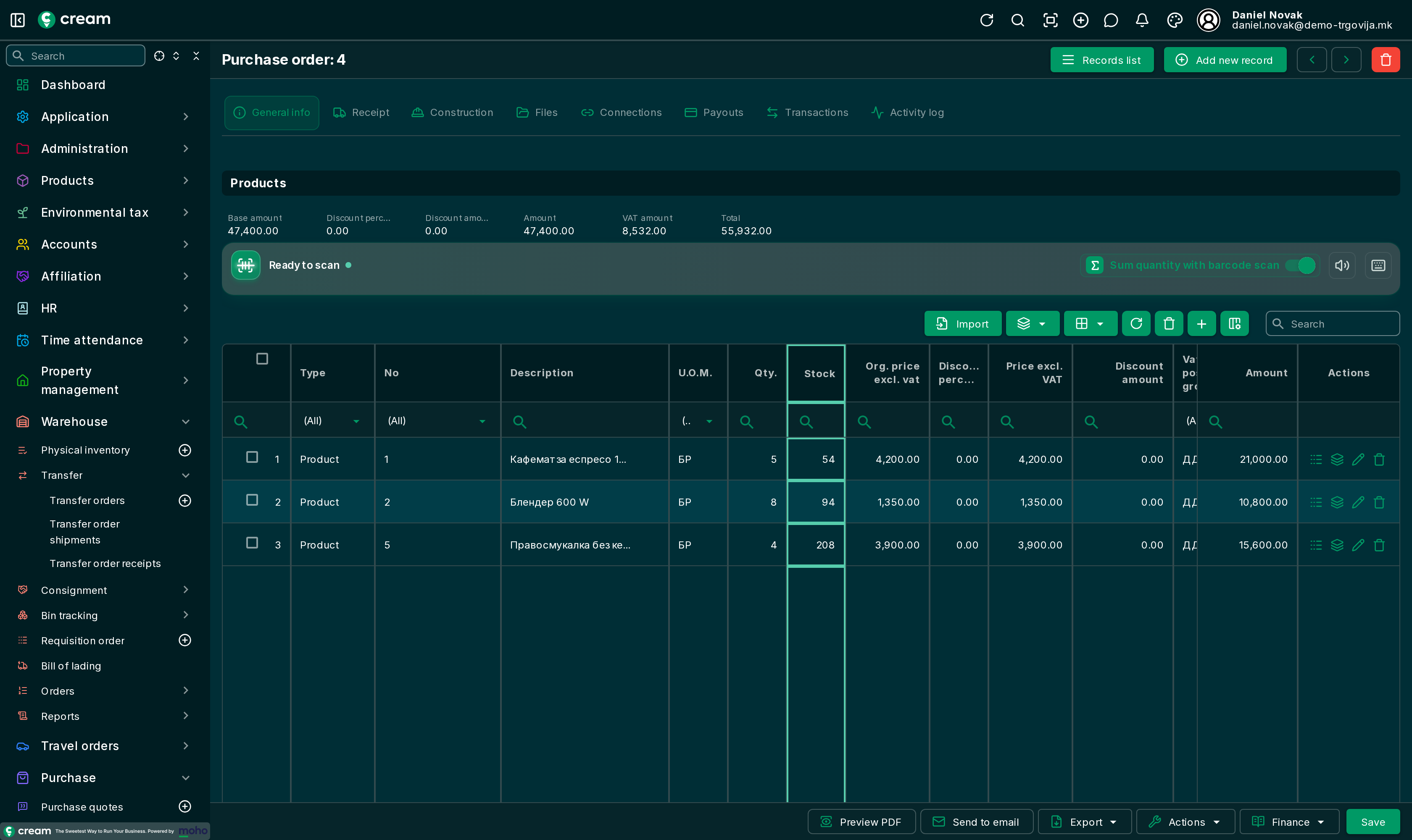
The products of every purchase document are entered in the Products grid at the bottom of the document. The Products link in the Document section takes you there too.
Ways to enter them
| Way | How |
|---|---|
| By hand | With + (Add a row), pick the product, quantity and price. |
| By barcode | When the panel shows Ready to scan, scan the product's barcode. With Sum quantity with barcode scan on, scanning the same product again adds 1 to its quantity instead of adding a new line. |
| From Excel | Import opens a window for an XLSX file. A sample file with the expected columns can be downloaded there. |
| From the catalogue | In the menu next to Import, choose Import from products and pick several products at once. |
In the same menu, Bulk update sets the Sales person and Tracking part of the selected lines at once.
Prices
The line price is the vendor's purchase price. The Prices include VAT switch in the Additional info section decides whether prices are entered with or without VAT.
On each line, in the Actions column:
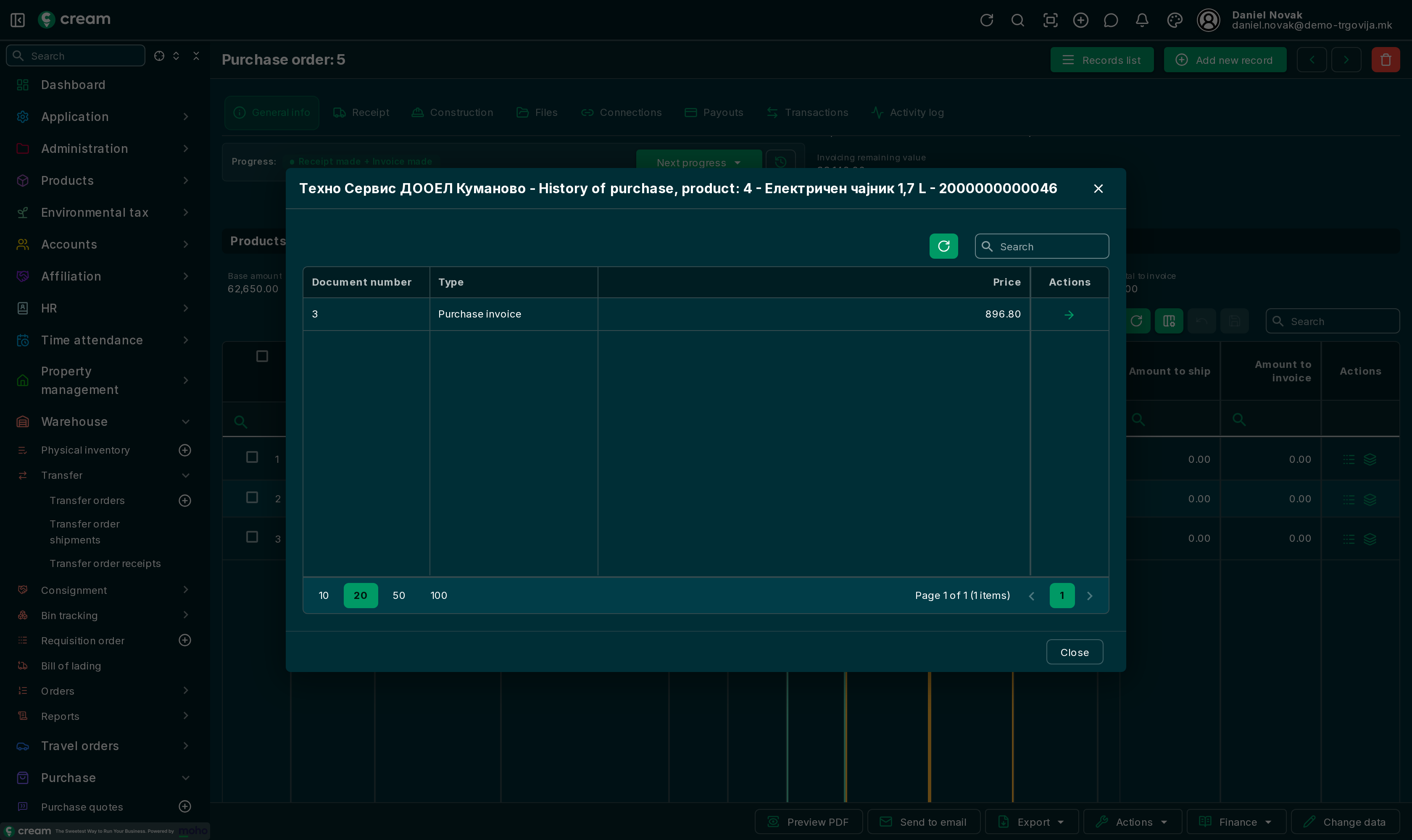
- History of purchase shows earlier purchases of the product from the same vendor, with the document number and price.
- Stock shows the product's stock per location, with lot and serial number.
The Stock column in the grid is the product's stock at the line's location, in the line's unit of measure.
Cloning
Actions > Clone makes a new document of the same type with the same lines, in draft and with no link to the original. Useful for purchases that repeat.