Faster invoice entry
The vendor's invoice doesn't have to be typed by hand. The buttons above the list fill it in from the invoice itself.
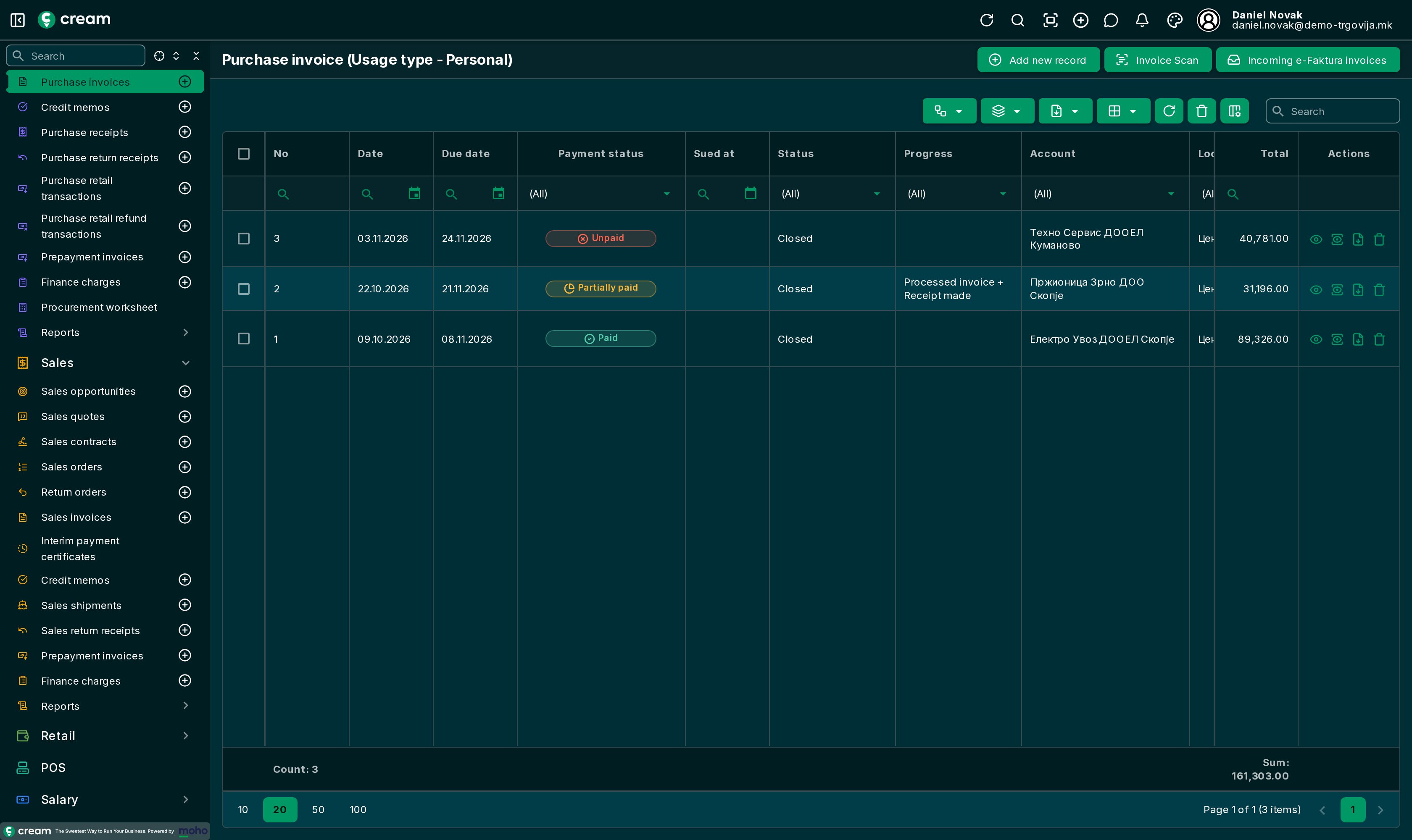
Invoice Scan
- Click Invoice Scan and choose the vendor's invoice: a PDF or an image (JPG, PNG, WEBP).
- The app reads the invoice and recognises the vendor, their location, the currency, the payment method, the invoice's number, date and amount, the due date, and the lines with their products. For each item it shows whether it was recognised (✓) or not (!).
- Check and complete the data. On the lines you can correct the quantity, price and VAT, and remove a line.
- Click Import. A purchase invoice is created in draft, with only the lines matched to a product.
The invoice is then approved and processed like any other: Purchase invoice.
Scanning is available only when it's switched on for the installation, only for purchase invoices, and only for a role that may create purchase invoices.
Incoming e-Faktura invoices
If the company uses the e-Faktura module, Incoming e-Faktura invoices lists the invoices vendors sent to the company through the UJP e-Faktura system.
- Each incoming invoice can be accepted or rejected; the answer is sent to e-Faktura.
- Importing creates a purchase invoice with the lines matched to products. The same incoming invoice can be imported only once.
Batch invoicing receipts
When the vendor issues one invoice for several deliveries:
- In , select the receipts.
- In the actions menu, choose Batch invoice.
- Enter the date, numbering series, payment method, bank account, payment terms and due date, and in External document the number, date and amount of the vendor's invoice.
- Confirm.
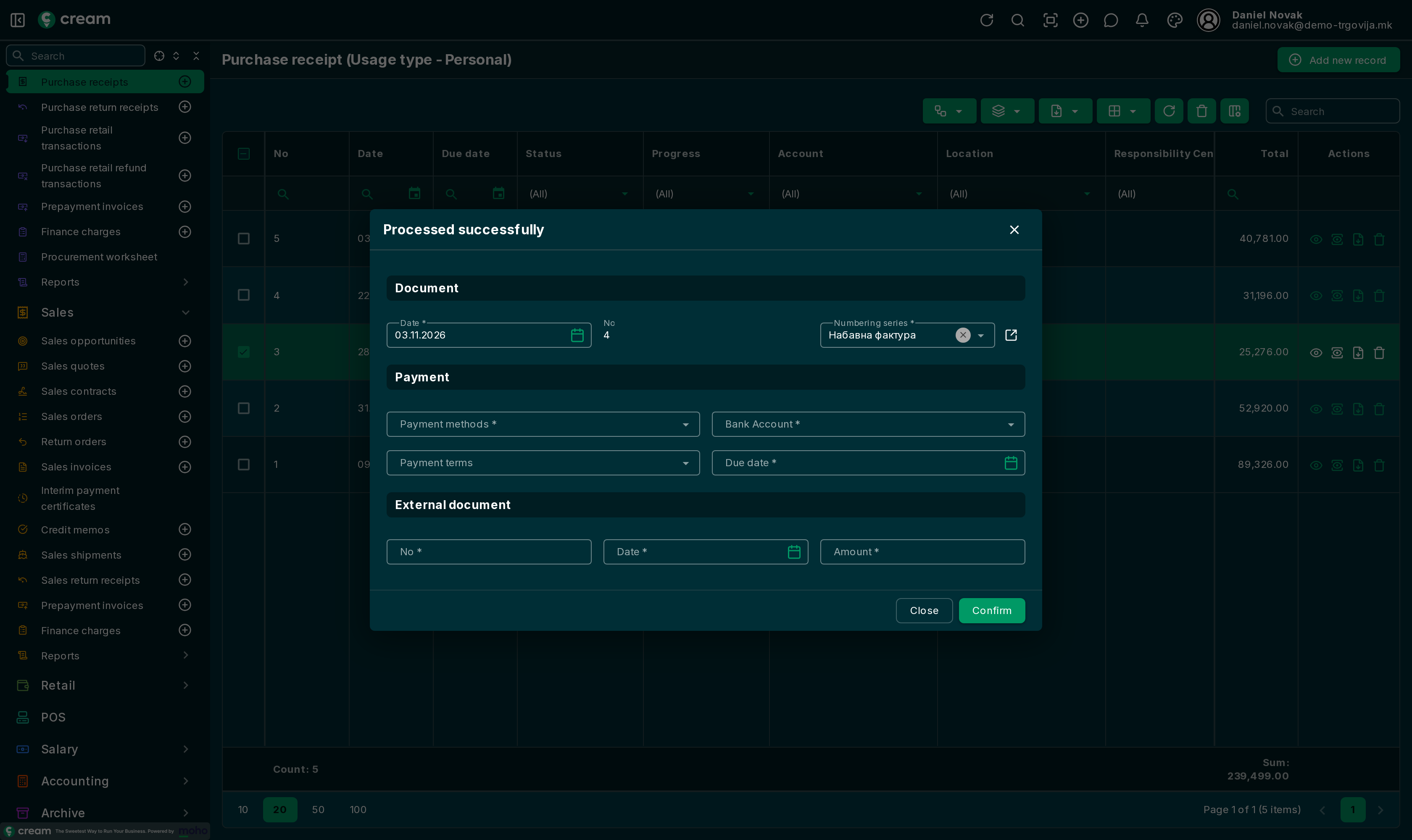
One processed purchase invoice is made with the lines of all the selected receipts. It is Closed once all goods are received.
The receipts must be Delivered or Waiting for delivery, and all must have the same vendor, location, currency and calculation type. If they differ, the app says which field differs.