Creating and processing a transfer order
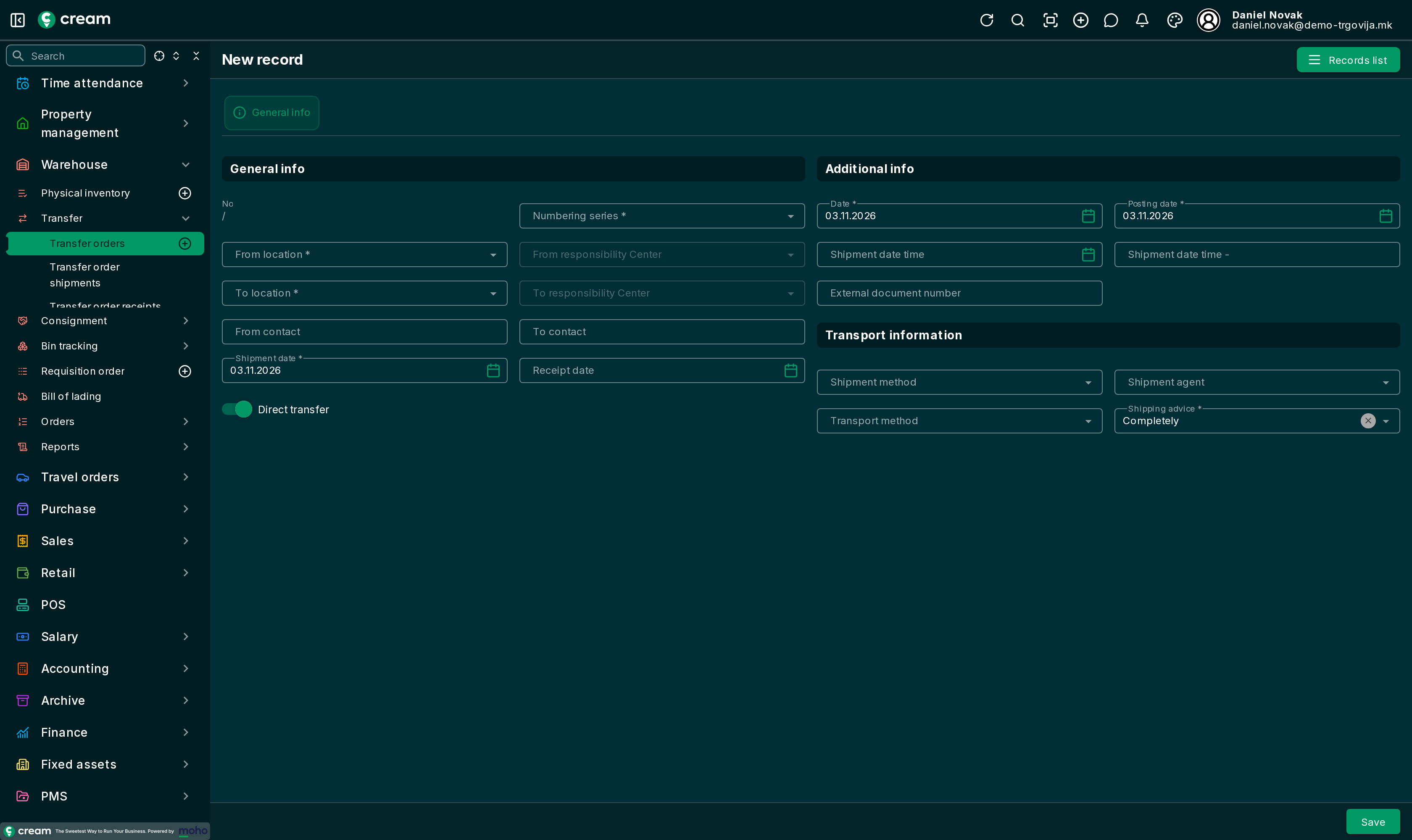
1. Create the transfer order
- Open and click Add new record.
- Select the numbering series. The number fills in automatically.
- Fill in From location and To location. They can't be the same location.
- Check the dates: Date, Posting date and Shipment date.
- Choose the Shipping advice:
- Completely – on approval, the full quantity of every line is prepared for shipping and receiving at once.
- Partially – goods can ship in several parts.
- Leave Direct transfer on, unless the goods will travel for a while. In that case see Transfer through a transit location.
- Save.
2. Add lines
Add the products and quantities as lines. You can also import lines from a file or scan them with a barcode reader.
- If the From location tracks bins, choose the bin the goods are taken from. The picker shows how much stock each bin holds.
- For products tracked by lot or serial number, enter them before shipping. Without them the shipment is refused.
3. Approve the transfer order
With Next status, choose Approved. The system checks that the transfer order has lines.
4. Ship and receive
From the approved transfer order, with Next progress, pick one of the actions:
| Action | What it does |
|---|---|
| Make a shipment | Creates a shipment and ships the goods right away. |
| Make a shipment (Wait for shipping) | Creates a shipment in status Waiting for shipping. The goods ship later, with Ship on the shipment itself. |
| Make a receipt | Creates a receipt and receives the goods right away. |
| Make a receipt (Wait for delivery) | Creates a receipt in status Waiting for delivery. The goods are received later, with Deliver on the receipt itself. |
| Make a shipment + Make a receipt | Ships and receives in one step, for a direct transfer where the goods arrive right away. |
A receipt can only be made for quantities that have already shipped.
The "Wait" option is useful when the warehouse prepares the goods and the shipment is confirmed once the truck leaves.
5. Closing
Once everything is shipped and received, the transfer order moves to Fully Processed on its own and is locked.
If part of the goods won't be moved, a Partially Processed transfer order can be closed by hand as Fully Processed. The unshipped remainder stays visible on the lines as outstanding quantity.
A transfer order can't be closed while goods are shipped but not yet received. You'll get a message that a line has a shipped quantity that hasn't been received. Receive the goods or reverse the shipment first.
Printing
From the transfer order you can print the document, a pick list (for the warehouse worker collecting the goods) and a blind receiving checklist without quantities, for checking goods on arrival.