Transfer through a transit location
When goods travel for a while, for example to a store in another city, shipping and receiving happen on different days. In a two-step transfer the goods sit at a transit location during that time. Stock then always shows where the goods are: at the source, on the road, or at the destination.
Rules for the transit location
- It doesn't track bins.
- It can't be the From location or To location of a transfer order, nor the location of any other document. Goods enter and leave it only through shipping and receiving.
- Once it has been used, its type can no longer be changed.
- It's left out of the stock export and procurement planning.
Steps
- Create a transfer order as usual (Creating and processing).
- Switch off Direct transfer and select a Transit location.
- Approve the transfer order and make a shipment. The goods leave the From location and go into transit.
- When the goods arrive, make a receipt. The goods leave transit and go into the To location.
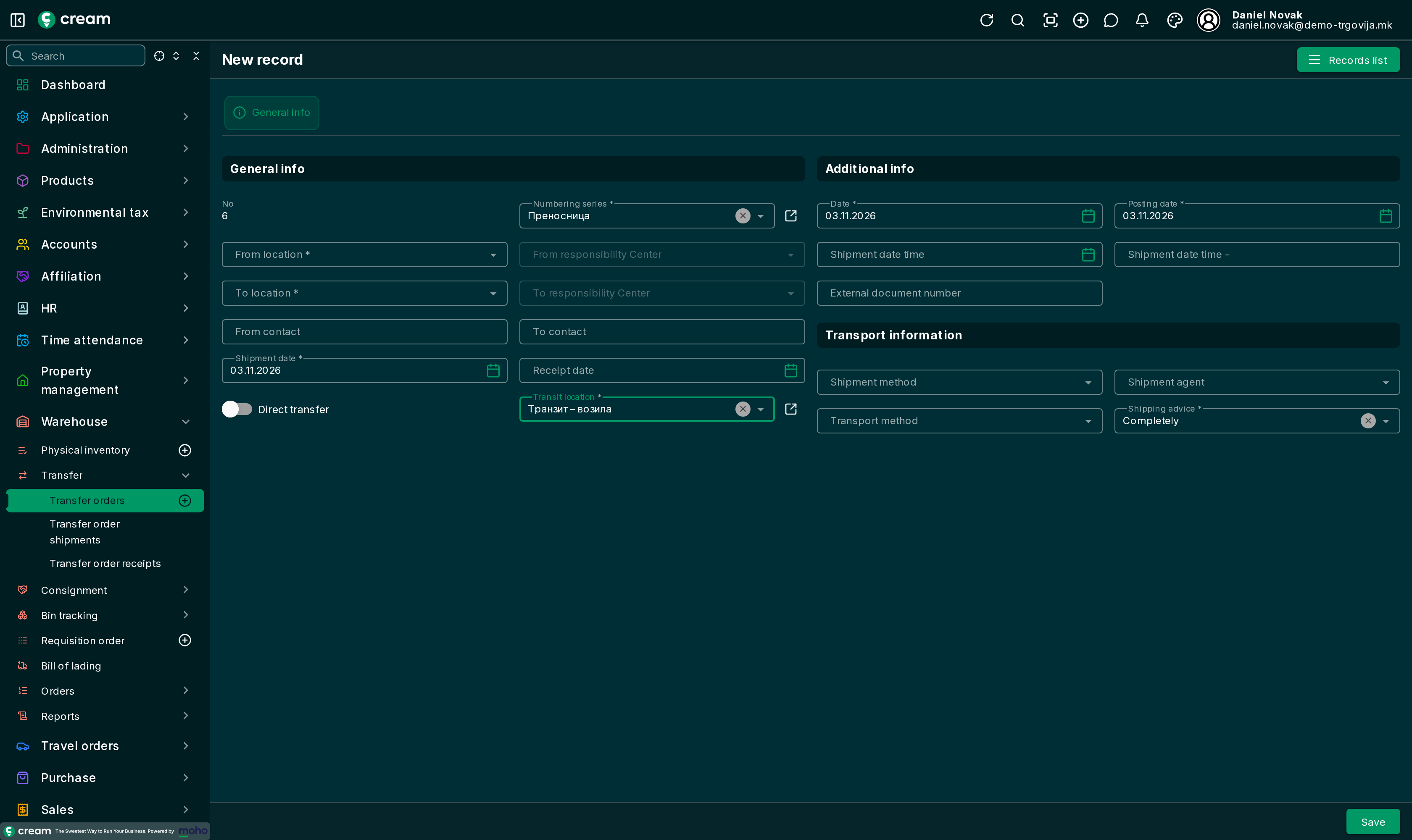
While the transfer order has a shipment that isn't reversed, Direct transfer and Transit location can't be changed.
Tracking goods on the road
shows every quantity shipped but not yet received, by transfer order and shipment. It lists the source, transit and destination locations, the product, the quantity, the days in transit and the waiting receipt, if there is one.
A transfer order with goods in transit can't be closed by hand. The goods have to be received first, or the shipment reversed.